Open Xeno’s built-in ScriptHub
Browse the built-in list first, then open the script you want to inspect.
 EXECGet the file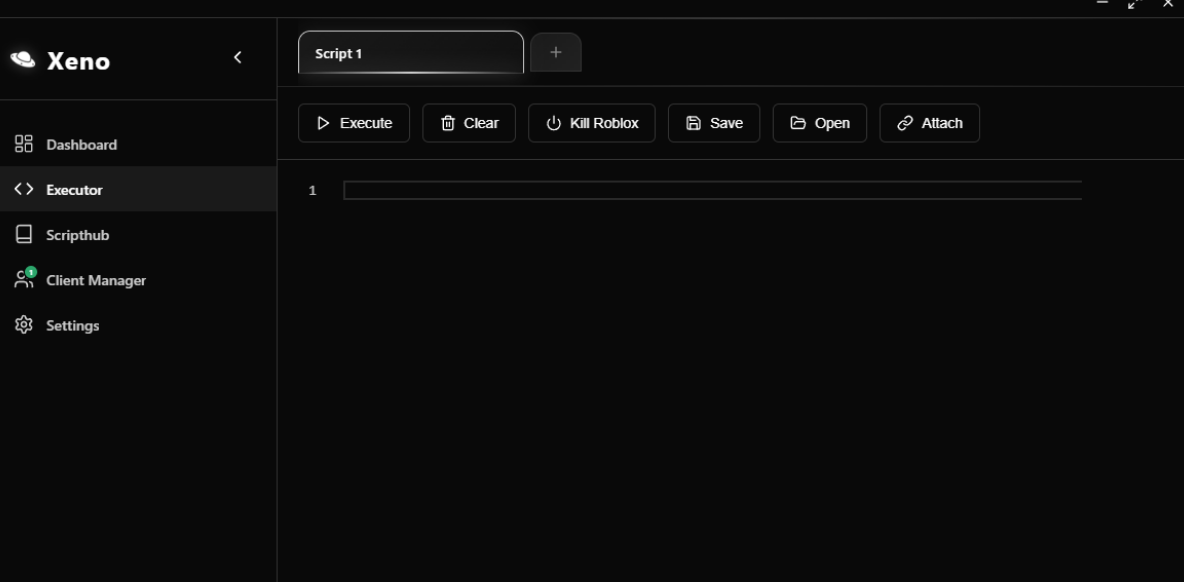
A focused desktop workspace for writing scripts, managing clients and keeping tools close at hand.
Checking the published file…
Xeno puts the script editor and client controls in one window. Write or open a script, work with the connected client, and return to the tools you use without jumping between screens.
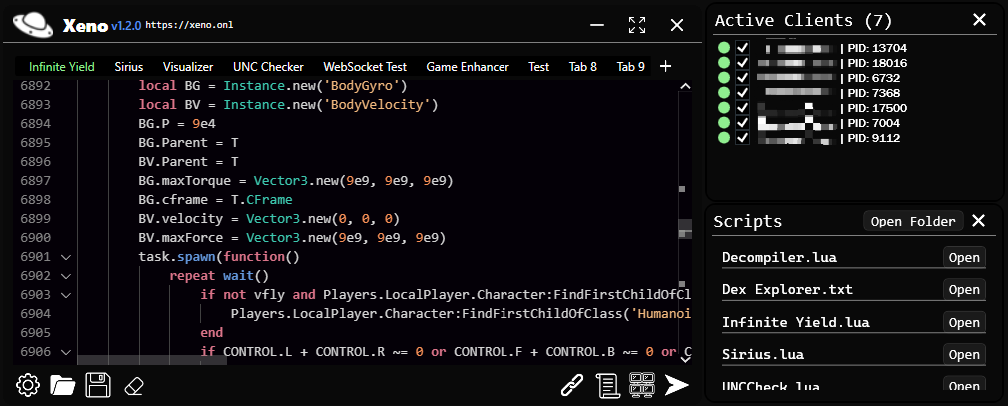
The editor, client list and ScriptHub each have a clear place in the interface.
Start with a script that names your game and shows its source. Compatibility varies by Roblox update, game and executor.
Browse the built-in list first, then open the script you want to inspect.
On ScriptBlox, search the exact game name (for example, Blox Fruits or Murder Mystery 2). For general commands, see the original Infinite Yield project.
Check what the script does and whether it matches your game. Open the code in the editor, then use Xeno’s execute control. A script may stop working after a game update.
Learn Luau basics ↗See the product before downloading it. Open the image for a closer look.
Return to the current file and start the download.